
 Join a discussion with self-published writers and you’ll hear strong opinions on what constitutes proper formatting for both paperbacks and eBooks. One discussion that comes up on various Kindle fora is what, exactly, to do with the first paragraph in a chapter.
There are no hard and fast rules, but there are some strong recommendations. The consensus is that for both eBooks and paperbacks, the first paragraph in a chapter shouldn’t be indented. Because I’m a curious person, I pulled five paperbacks off my shelf to see how Stephen King, Billie Letts, Barbara Kingsolver, John Steinbeck, and Larry McMurtry handled first paragraphs. Okay, not them, but their publishing and formatting teams. None had indented first paragraphs, and four of the five used drop caps.
A drop cap is an oversized first letter often used to start the first word of the first paragraph in a chapter. Historically, Kindle hasn’t handled drop caps very well (more on that later), so for now we’ll focus on paperbacks.
I’m using Microsoft Word 2010. If you’re using a different version, the terms and commands should be the same, but may be located in a different place on the toolbar.
To insert a drop cap, put your cursor in front of the first letter of the word, then go up to the toolbar and click “Insert” (red arrow below). From there, click “Drop Cap” (blue arrow below). From the dropdown menu, select “Drop Cap Options” (green arrow below).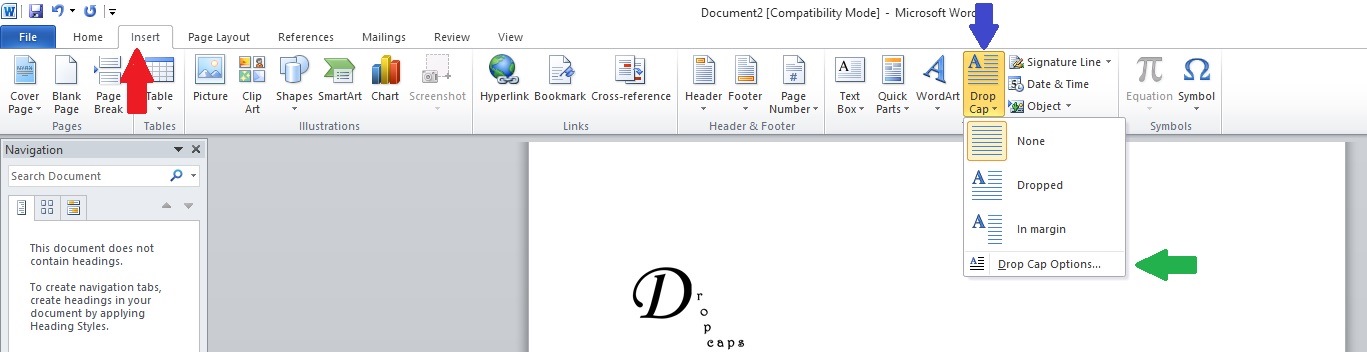
Click to enlarge
From “Drop Cap Options,” click on “Dropped” (red arrow below). Then choose your font, how many lines you want the letter to drop, and how far you want the drop cap to be from the rest of the word (blue arrow below). In the screenshot below, I chose Times New Roman, dropped two lines, no space from the rest of the word (green arrow below).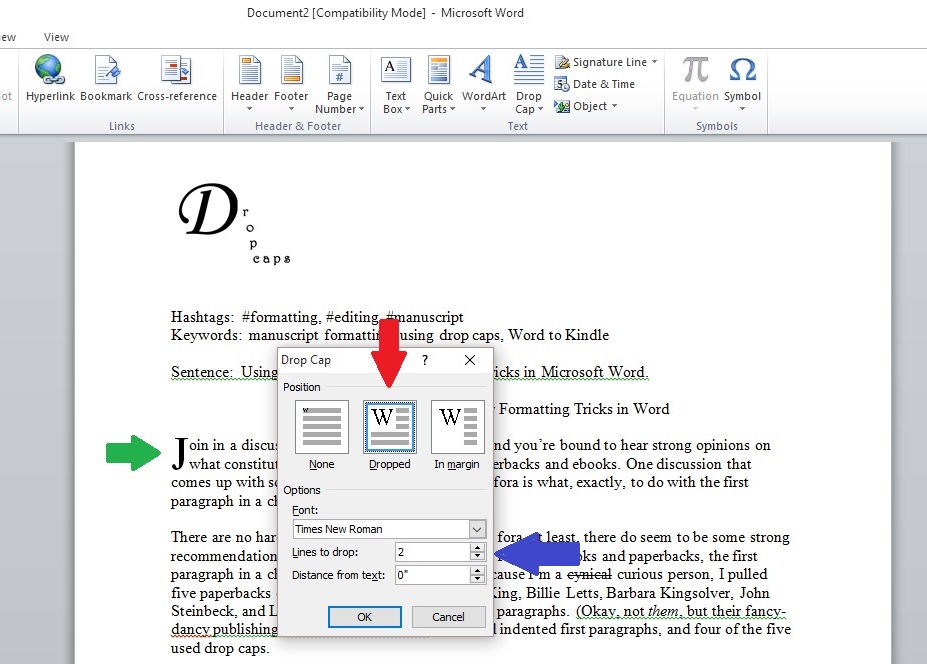 For what it’s worth, if you’re using a drop cap for a first word that’s part of a quote, the quote mark has historically been left off (as I recently learned from a friend).
For example: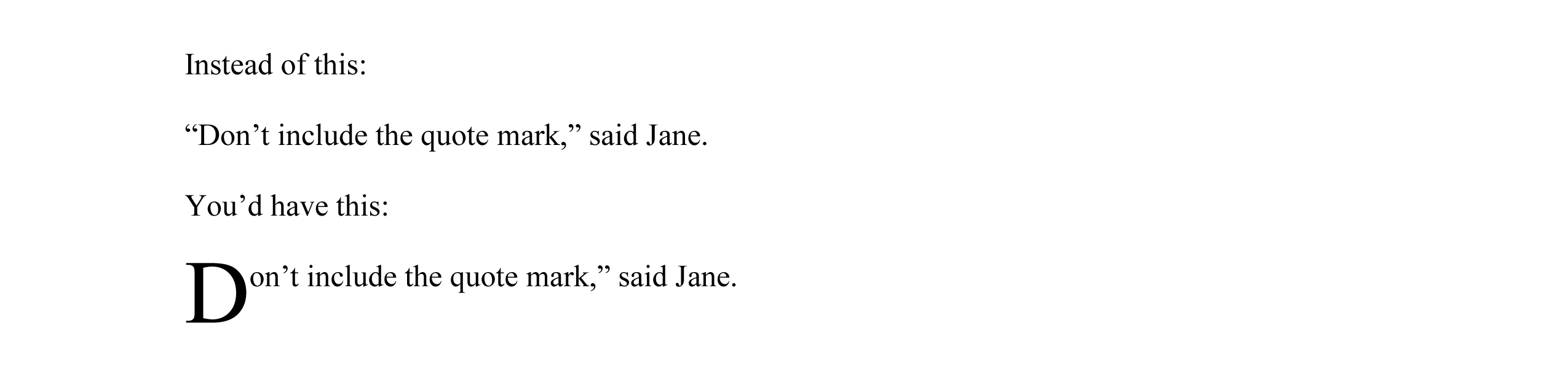 Simply leaving off the quote mark is actually the easiest option in Word, because Word enlarges the first character, meaning with the quote mark present, Word will enlarge and drop the quote mark instead of the first letter, resulting in a giant quote mark and a normal-sized first letter (black arrow below).
 There are those who believe leaving off the first quote mark is confusing to readers. Luckily, there’s a workaround in Word for those who want the quote mark, but it’s time consuming. More on that in a future post.
As mentioned previously, Kindle hasn’t been fond of drop caps. My attempt resulted in a drop cap ending up on a different line from the rest of the word. I’ve heard rumors that upgrades now allow us to use drop caps, but I haven’t had a chance to check it out. The next best option, say the anonymous internet gurus, is a flush left first sentence for the first paragraph in a chapter, with (possibly) something to make it pop.
The problem is Kindle automatically indents first sentences. Again, Word has a workaround.
From “Home” on the toolbar, click on the tiny little arrow under “Paragraph” (orange arrow below). From there, click on “Special” (green arrow below) and choose “First line.” Under “By” (black arrow), put your cursor in the box, delete what’s in there, and type, “0.01.” This is the closest to “0” Word will recognize. It’s nearly invisible as an indentation, but it’s enough to trick Kindle into thinking you’ve set one. Click “OK.” Presto – no indent for the first sentence of a chapter.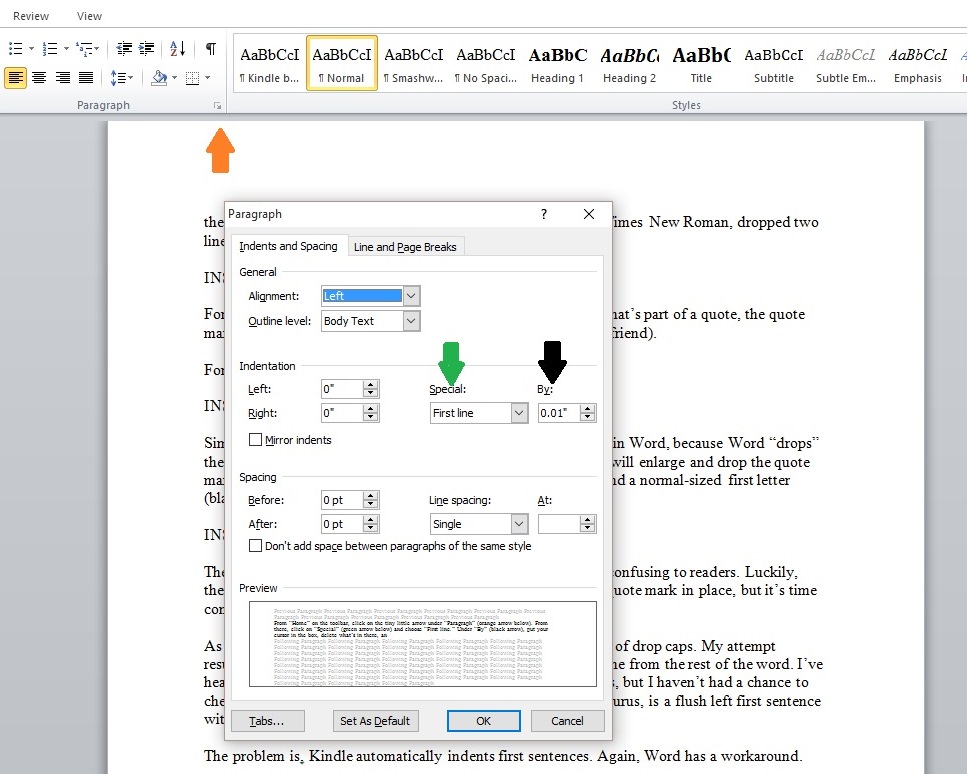 But what about that whole “pop” thing? Some people bold the first few words. Others do all caps for the first few words. Something I’ve experimented with is using all caps for the first few words, but decreasing the size.
To do this, highlight the words you want changed (black arrow below). From “Home” on the toolbar, click the tiny arrow under “Aa” (blue arrow below) and select “Uppercase.” The first letters will now be in all caps. To size them smaller, click on the small capital “A” (green arrow). The more you click, the smaller they’ll be.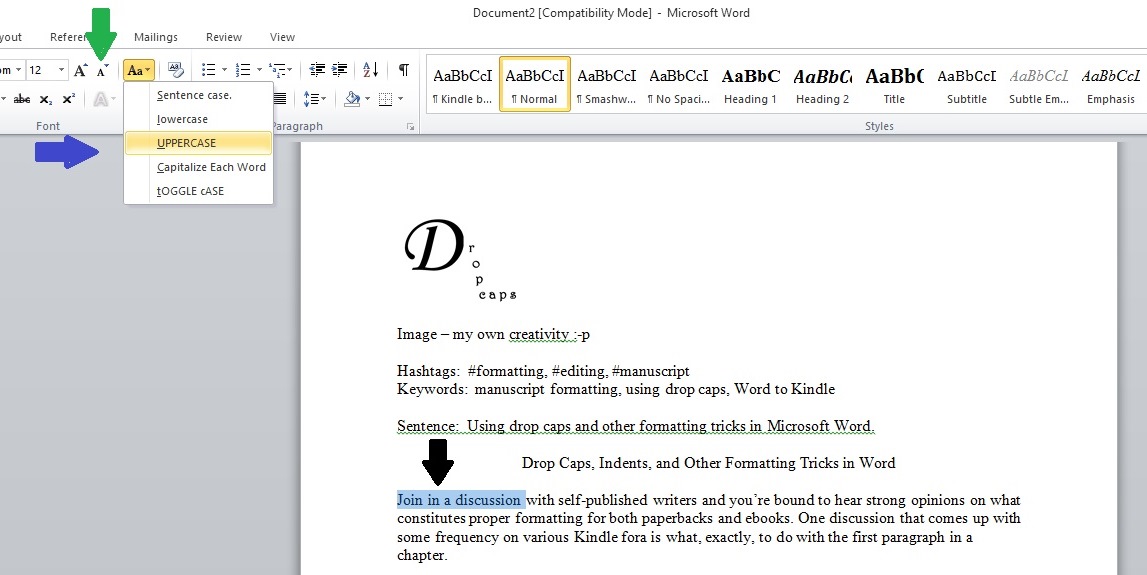 The end result:
 Again, there are no hard and fast rules, and one of the fun things about being a self-published or small-press author is that we can experiment to find what works best for us.

Excellent explanation of how to use drop caps! Thank you!
You’re very welcome, Thom!
Very timely for me Melinda. I wanted to use Drop Caps on my new book. Thanks. Now I need to find out how to begin page numbers on the first chapter instead of the first page.
I use the formatted template and just delete their words and paste mine in. It comes with numbers already in place. 🙂 https://www.createspace.com/en/community/docs/DOC-1323
I do that, too 🙂
Thanks. I had no idea.
I’ve only ever used drop caps in my paperbacks. I just assumed it would mess up the ebook formatting. Does the Microsoft Word drop cap function translate to ebooks? Or is this just for paperback books?
Only paperbacks. I’ve heard a rumor that Kindle has made changes to allow drop caps, but I haven’t had a chance to check it out and probably wouldn’t trust it.
I tried drop caps in e-books a long time ago and they never worked right, so I just don’t use them there at all. I love the way they look in paperbacks, tho. Great tutorial!
Thanks, Melissa. 🙂 Yep, I had the same experience.
Personally, I do NOT like drop caps in eBooks. I do not like them, I do not like them. Honestly, I really do not like them…
LOL, something about this reminded me of Dr. Seuss! 🙂
I adore drop caps, maybe because they’re reminiscent of old, illuminated manuscripts.
This is a wonderful tutorial, Melinda. If I ever get to use it, though, I’ll have to upgrade my Word program. Mine’s so old it doesn’t have the option.
Thanks, Candace. 🙂 I like drop caps, too. If you ever get to use it and have to update, let me know and I’ll help in any way I can.
Thanks for the info on indentation of the first paragraph in a chapter, after a section break, etc. That will be most helpful for me.
Sorry to be so late reading and commenting, but I can’t ever catch up on my emails!
Glad you found it helpful, Helen! 🙂