
 A Pingback is not merely the sound of elastic being twanged on Cathy Speight’s catapult as she aims her ammunition at Chris James. It is, in fact, a type of comment that’s created whenever you link to another WordPress.com post (provided the blog the post appears on has pingbacks enabled). The best way to think about pingbacks is as remote comments:
- Person 1 posts something on his blog.
- Person 2 posts on her own blog, linking to Person A’s post. This automatically sends a pingback to Person A when both have pingback enabled blogs.
- Person 1’s blog receives the pingback, then automatically goes to Person 2’s post to confirm that the pingback did, in fact, originate there.
How can I activate Pingbacks?
You can find the settings for pingbacks on your WordPress site. From your Dashboard, go to Settings > Discussion. At the top you’ll see the Default articles settings section, as shown below: Continue reading “How to Use Pingbacks”
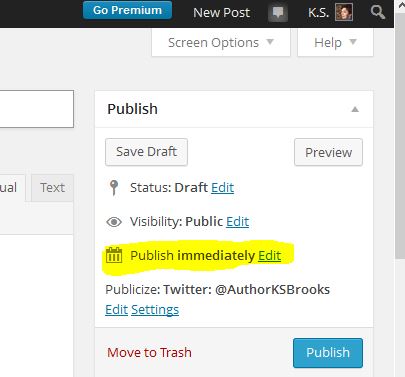 Notice “Publish immediately” is the default. (I’ve expertly highlighted that in yellow for you.) Click on edit and your screen will shift down, making room for the month, day, year, and time to be entered by you.
  Personal appearances are great for selling autographed copies of your print books. But if your tour budget is similar to mine, it can be more practical to offer signed books a different way. Say, through your blog.
 Some folks have asked me how to make words into a link on a WordPress blog – you know, so when you click on the words, you go to a web page? This may sound silly to some of you, but it’s not intuitive to everyone. So here is a step-by-step tutorial for those who want to be in the know. The logic is the same for MS Word and for Blogger (blogspot) blogs, although the little buttons are a little different. (I’ve included a screen capture for Blogger at the bottom of this article.)